
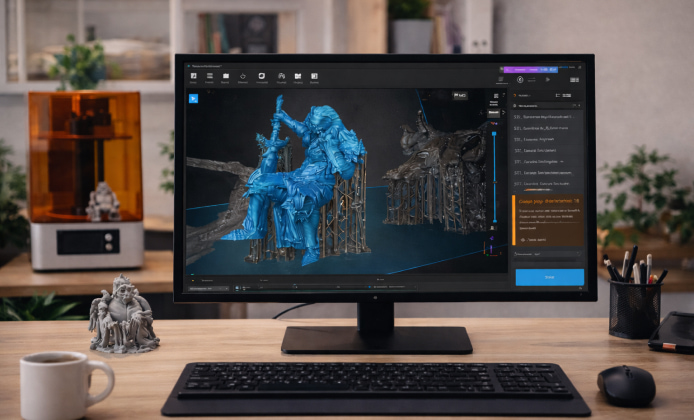
Resin printing is often less about chasing the newest feature and more about protecting a workflow you already trust, especially when a printer profile, exposure routine, and support strategy are already dialed in. Updates can be great, but they can also introduce interface changes, new defaults, or subtle differences in slicing behavior that affect reliability. If you’re managing multiple machines, supporting a classroom or makerspace, or simply maintaining a proven setup, a legacy build can be a practical choice.
Many creators stick with a familiar release because it matches their hardware generation, resin brand notes, and validated settings. In some cases, older GPUs or modest laptops run smoother on earlier software, which matters when you’re arranging lots of miniatures or heavy support forests. For others, the motivation is consistency: when a build has produced dozens of successful prints, changing it can feel like rolling the dice.
“The best slicer is the one that reproduces your results consistently.”
Why You Might Prefer a Legacy Release
- Hardware compatibility: older PCs, drivers, and chipsets may behave better with earlier builds.
- Proven results: you already know how a specific release handles supports, islands, and hollowing.
- Studio consistency: teams can standardize one version so files look the same on every workstation.
- Training simplicity: keeping one interface reduces friction for new users.
When you decide to run a CHITUBOX old version in your setup, the key is to treat it like a controlled environment for repeatable output. Rather than viewing it as “outdated,” think of it as “locked” to a known-good baseline that supports your current printer fleet. This approach is common in production workflows where predictability matters as much as innovation.
How to Choose the Right Build
The goal is not to go as far back as possible, but to select a release that aligns with your printer firmware, file format expectations, and UI comfort. Some users prefer a slightly earlier build that still supports newer export formats, while others prioritize interface speed and stability. If you’re unsure where to start, pick a release you used during your most consistently successful period, then validate it with a small calibration print.
If you are comparing options, consider how a CHITUBOX older version behaves with your typical models and resins in real projects. Slice the same file in two builds, then compare: support contact points, hollowing holes, island detection, and estimated time. Tiny differences can add up, especially on prints that push the limits of your machine.
Compatibility Checklist
- Confirm your printer model appears in the software’s device list or can be configured manually.
- Verify the exported file extension matches what your printer accepts.
- Check that your typical resin profiles can be recreated accurately.
- Run one short validation print before committing for larger projects.
Safe Download and Installation Practices
For many people, the biggest concern is obtaining installers from a trustworthy source. Avoid random mirrors and unknown repackaged installers, because they may be outdated, modified, or bundled with unwanted extras. A good rule is to download from official channels when possible, and keep your own archive once you’ve verified the installer works.
When you plan to use CHITUBOX previous versions as part of a stable workflow, it helps to document the exact build number, your printer profile, and your resin settings in a simple notes file. This makes it easy to restore the environment later, and it also supports troubleshooting when a print behaves differently after a driver update or OS change.
Before you download CHITUBOX old version for a production workstation, create a restore point (Windows) or a simple backup snapshot (macOS) and store your profiles separately. This way, if something conflicts like a new graphics driver or a background security tool you can revert quickly without losing the slicing presets you rely on.
Using Multiple Versions Without Breaking Your Setup
It’s possible to test a legacy release alongside a newer one, but it requires a little care. The main risk is shared configuration folders, which can cause profiles or preferences to overwrite each other. A practical approach is to install versions in separate directories and export/import profiles rather than sharing them automatically.
Some users keep an old version of CHITUBOX app installed for a specific printer while using a newer release for another machine, which can be surprisingly effective. If you do this, label shortcuts clearly (for example, “Legacy Slicer” and “Current Slicer”) and keep a dedicated folder structure for exported profiles and sliced files.
Quick Comparison Table
| Goal | What to Check | Practical Tip |
|---|---|---|
| Stable slicing results | Supports, islands, hollowing, export format | Re-slice one proven model and compare outputs |
| Hardware compatibility | GPU driver behavior, UI responsiveness | Test with your biggest scene file, not a small demo |
| Team consistency | Same build number across PCs | Write a one-page “standard settings” sheet |
| Risk control | Install source, backups, profile exports | Archive the verified installer in cloud storage |
Common Troubleshooting for Legacy Builds
- Crashes on launch: try updating GPU drivers or running the app with compatibility settings on Windows.
- Missing printer profile: create a custom profile using your printer’s exact resolution and build volume.
- Unexpected artifacts: re-check anti-aliasing and hollowing settings, then validate with a small test print.
- Slow performance: reduce viewport effects and simplify support visualization if available.
On many setups, keeping CHITUBOX download old version available as a fallback is a smart safety net for urgent prints. If a newer build starts behaving unpredictably right before a deadline, a verified legacy installer can help you keep production moving while you investigate the change.
PC-Specific Notes
Windows users often ask about performance and reliability on older hardware. If you’re optimizing an aging workstation, focus on driver stability, available RAM, and keeping background apps minimal while slicing large scenes. For studios that manage multiple machines, standardizing one build can reduce support requests and simplify training materials.
When you run CHITUBOX on PC older version alongside modern CAD tools, keep project files organized by slicer release and export settings. That small habit prevents confusion later when you need to reproduce an older print exactly, including support density, lift speeds, and exposure values.
Final Tips for a Smooth Legacy Workflow
- Save a “golden” printer profile export and store it with your project backups.
- Keep a small library of validation models to test after any OS or driver change.
- Write down resin settings that produced reliable results, including temperature notes.
- Consider a separate Windows user account for slicing to reduce conflicts and clutter.
A carefully maintained legacy slicer environment can be just as professional as a cutting-edge setup, as long as you keep good records and validate changes. With the right habits, you’ll get consistent slices, predictable prints, and less time spent chasing mysterious failures.
 Install CHITUBOX Guide: Improved Slicing Engine and Multi-Printer Compatibility
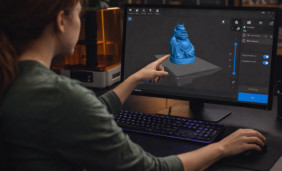 CHITUBOX on Mac: Smooth UI Performance for High-Detail Resin Prints
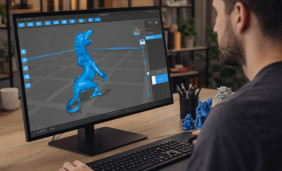 CHITUBOX for Free: Unlock Resin Printing Workflows
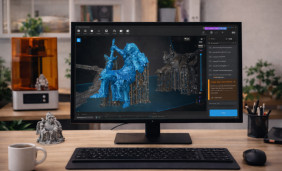 CHITUBOX Old Version: Match Printer Firmware and Export Formats Safely
 What Is Chitubox and How to Use?
 Best Apps Similar to Chitubox